
In previous versions of the Cyberwatch platform, it was possible to automatically deploy patches for Windows and Microsoft applications supported by KB. With the 14.6 update, it is now possible to deploy patches to third-party software using the Windows Package Manager, also known as WinGet.
Let’s take a look at what this new feature entails and how to optimize patch management for Windows applications.
Improving patch management for Windows applications
What is patch management?
Patch management is the process of distributing and applying updates to software. Having a strategy and tools in place allows you to:
- Correct vulnerabilities present on systems
- Optimize the time spent deploying updates
- Ensure that the entire fleet has been patched
What is Windows Package Manager?
Windows Package Manager is a package manager published by Microsoft that allows you to install, update, and uninstall software, even if it was not installed with Windows Package Manager.
It complements patch management capabilities on Windows environments directly on the Cyberwatch interface. But how do you use it and how do you effectively update Windows applications?
Implementing patch management with the Cyberwatch platform
Third-party applications on Windows can now also be updated directly from the Cyberwatch platform. This new feature is compatible with all existing update functionalities.
Since third-party applications installed on Windows environments are not updated via Windows Update, they are more difficult to update and often overlooked, especially if they were installed outside of a centralized deployment process. Vulnerabilities related to these applications increase the cyber exposure of your information system.
Combining the use of the Cyberwatch platform with Windows Package Manager is therefore a good way to fix vulnerabilities related to these applications.
What are the prerequisites?
Windows Package Manager is installed by default on Windows 11, modern versions of Windows 10, and Windows Server 2025. Therefore, no additional configuration is required on these operating systems.
Which applications can be deployed?
To use this feature, the application must be supported by both the Cyberwatch platform and the Windows Package Manager. Most common applications are supported, such as browsers, office applications, development applications, databases, and other widely used software.
To verify that an application is covered by patch deployment, you can check that the software is supported by Cyberwatch (List of covered software) and by the Windows Package Manager (winget-pkgs).
4 steps to use Windows Package Manager in Cyberwatch
Let’s go through these four steps together to use Windows Package Manager on your Cyberwatch instance:
- Monitor the target asset with the Cyberwatch platform
- Windows Package Manager is automatically detected when scanning the asset
- In the “Administration” menu, allow the deployment of patches and the deployment of patches via Windows Package Manager

Setting to allow patch deployment
- On the asset sheet, in the “Patch Management” menu, you can now see that supported Windows applications can be updated from the interface
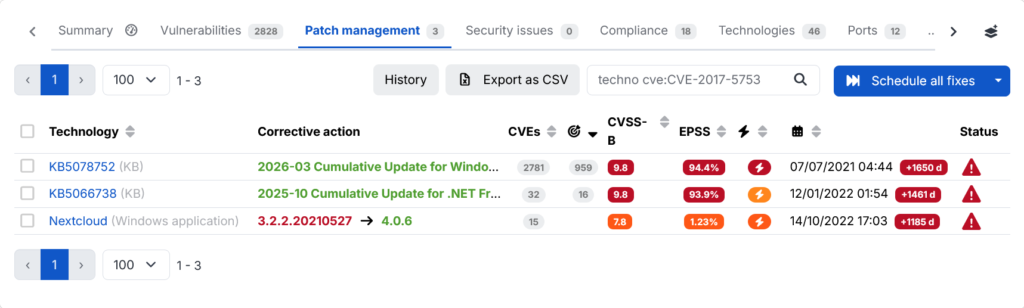
“Patch Management” view on an asset page
Optimization of patch management for Windows applications
Patch management is an integral part of the vulnerability management cycle offered by Cyberwatch.
To optimize patch deployment, you can use the tools offered by Cyberwatch, while complying with the patch management policy implemented within your organization.
Patches can be deployed from an asset page, as seen previously, or from the asset inventory using batch actions. You can also create a deployment policy to automatically schedule update actions during your maintenance periods.
This allows you to define the days and time slots during which assets can install patches. With Windows Package Manager, Windows cumulative updates, Microsoft updates, and third-party applications will be updated.
To create a deployment policy, go to the “Settings” menu in Cyberwatch, then to “Deployment and Restart Policies”:
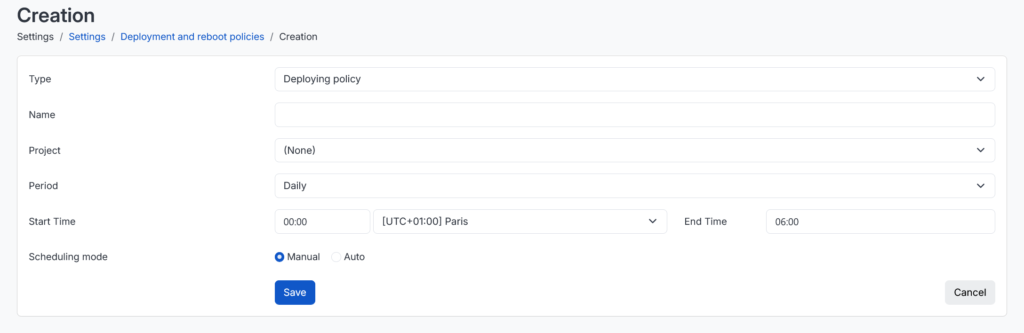
Deployment policy creation page
Tip: You can create different policies for your Windows servers and workstations to comply with the update times for these two categories of assets. These policies can be automatically assigned to assets via an asset rule based on the characteristics of the asset.
Finally, you can supplement this deployment with a restart policy to finalize the installation of patches. The latter is implemented in the same way.
Use patch management to better prioritize applications
To optimize the time spent fixing vulnerabilities, it is possible to automatically patch part of the IT infrastructure to focus on the most critical assets.
Third-party software installed on Windows assets is traditionally the most vulnerable. To remedy this, a deployment policy can be implemented as described above to automatically reduce the number of vulnerabilities on this group of non-critical assets. The patches deployed will include updates via Windows Package Manager.
This simplifies vulnerability management: vulnerability fixes on Windows and Linux are automated on these assets, reducing remediation time and the number of priority vulnerabilities to be fixed on your information system. This allows you to make the best use of your teams’ time on other tasks, such as monitoring the most critical assets.
In summary
Support for the Windows Package Manager has significantly increased the number of applications that can be updated natively from Cyberwatch. Thanks to the deployment policy tools, all you have to do is configure your instance and start hunting for vulnerabilities on Windows!
Feel free to share this article, and if you would like to learn more or request a demonstration, contact our experts and we will get back to you within 24 hours.